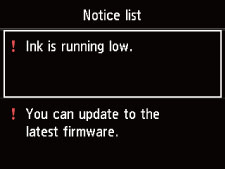
LCD and Operation Panel
Turning on the printer displays the HOME screen.
Using the  ,
,  button to select an item from the menu and pressing the OK button enable you to perform each setting.
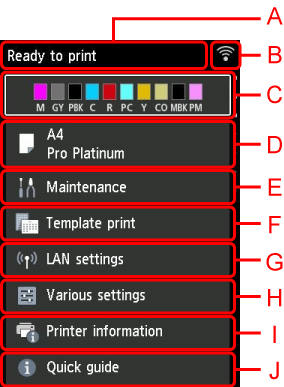
- A: Printer status display area
-
Displays printer status, messages, and other information.
- B: Network
-
Displays network status by the icon.
The icon differs depending on the network of use or the network status.
 Wi-Fi is enabled and the printer is connected to the wireless router.
 Note
Note-
Depending on the signal state, the icon will change.
(Signal strength: 81 % or more): You can use the printer over Wi-Fi without any problems. (Signal strength: 51 % or more): The problem such as the printer cannot print may occur according to the network status. We recommend placing the printer near the wireless router.
 (Signal strength: 50 % or less): The problem such as the printer cannot print may occur. Place the printer near the wireless router.
 Wi-Fi is enabled but the printer is not connected to the wireless router.
 Wired LAN is enabled.
 Wireless Direct is enabled.
 Network is disabled.
 -
- C: Ink status display area
-
Displays the ink status. Selecting this item enables you to check the remaining amount of ink and model number of ink tank.
- D: Paper settings display area
-
Displays information about the paper in the top feed. Selecting this item enables you to specify the size and type of paper loaded in the top feed.
- E: Maintenance
-
Select this item to perform maintenance of the printer.
- F: Template print
-
You can print and make as lined or graph paper.
- G: LAN settings
-
You can perform settings relating to network.
- H: Various settings
-
You can change printer settings such as settings when printing.
- I: Printer information
-
Displays printer information and error histories.
- J: Quick guide
-
Displays how to operate the printer and QR code accessing to the Online Manual.
Note
-
When printing is in progress, you cannot select grayed out items.
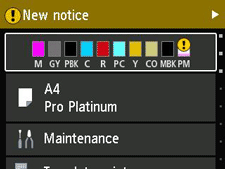
 button to display the